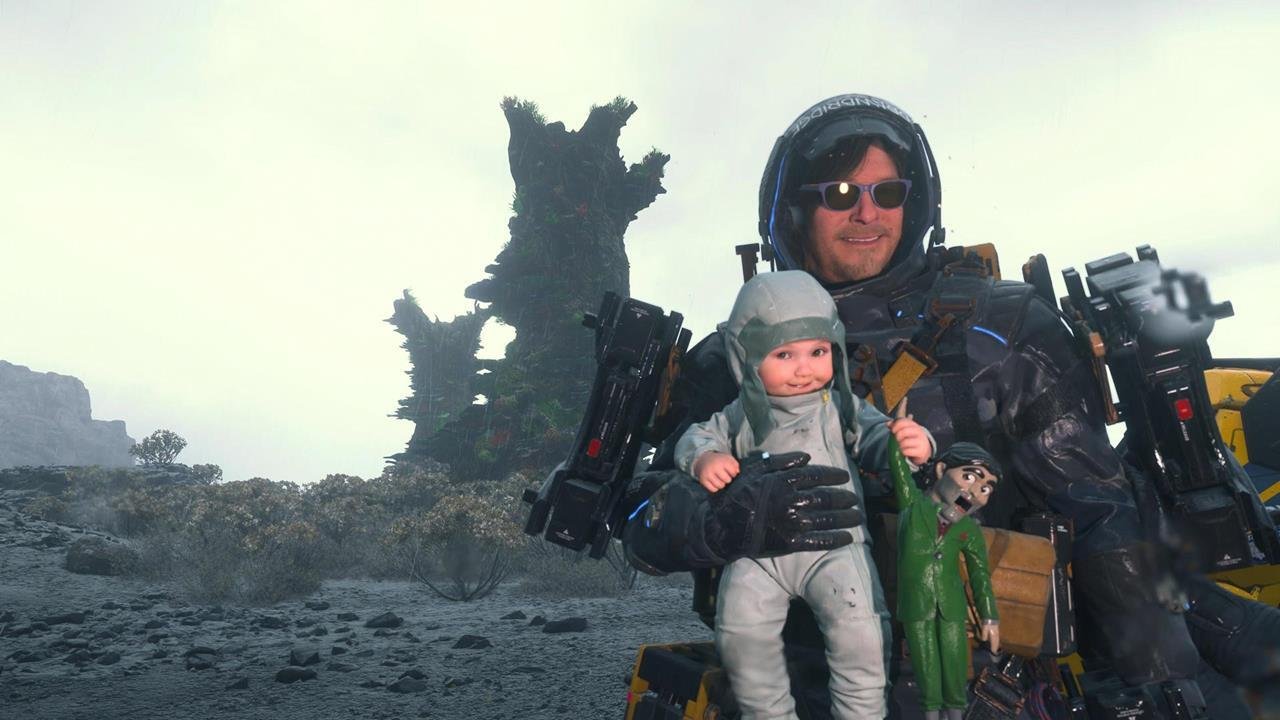
Death Stranding 2: On the Beach features a powerful and creative photo mode that allows players to capture cinematic moments, emotional character shots, and breathtaking environments. From the very beginning, the mode encourages experimentation, and as a result, even simple scenes can turn into visually striking images. Moreover, the wide range of tools makes this feature appealing to both casual players and dedicated in-game photographers.
How to Access Death Stranding 2 Photo Mode
To begin with, activating photo mode in Death Stranding 2 is quick and seamless. At almost any point during gameplay, including select cutscenes, players can press and hold the left side of the DualSense controller’s touchpad. Instantly, the game pauses and opens a free camera view around Sam’s surroundings.
After that, players can adjust the scene to their liking. Once satisfied, pressing Square hides the on-screen menus. Then, pressing X captures the image cleanly without any interface elements.
Camera Controls Explained
Camera Movement and Framing
First of all, photo mode offers precise control over camera positioning. Players can move the camera freely using the left analog stick and triggers, which allows for creative angles and dynamic framing. In addition, focal length adjustments help players zoom in for close-ups or pull back for wide landscape shots.
Depth of Field and Focus
Next, depth of field settings let players blur the background or foreground to guide the viewer’s attention. At the same time, manual focus control adds a cinematic feel, especially during character-focused shots.
Brightness, Filters, and Visual Effects
Exposure and Color Filters
To further refine images, brightness and contrast sliders allow players to fine-tune lighting conditions. Similarly, color filters help set the mood of a shot, and players can adjust their intensity to avoid overpowering the scene.
Noise and Lens Effects
Additionally, players can add a subtle film-style grain using the noise option. Other lens effects include vignette adjustments for edge darkening, lens distortion for dramatic curvature, and chromatic aberration for gentle color separation along the frame.
Character Poses and Expressions
Beyond the environment, photo mode gives players control over characters. Players can include or remove Sam from the frame, adjust his pose, change his facial expression, and direct his eyeline. As a result, screenshots can feel more expressive and story-driven.
Likewise, companion characters such as Lou and Dollman offer similar pose and expression options. Therefore, players can create more emotionally engaging group shots or narrative scenes.
Frames, Logos, and Decorative Elements
For players aiming for a polished or poster-style finish, photo mode includes frames and logos. These elements can be resized, recolored, rotated, and repositioned. Consequently, each image can feel unique and carefully designed.
Lighting Options and Mood Control
Perhaps most importantly, lighting tools allow players to control the overall mood of an image. Players can enable additional light sources and adjust their intensity, color, saturation, spread, and softness. Furthermore, repositioning lights helps create dramatic shadows or soft highlights, depending on the desired atmosphere.
How to Save and View Photos
Once a photo is taken, the game saves it directly to the PS5’s storage and the internal photo database. Afterward, players can view screenshots in the PlayStation 5 Media Gallery or access them through the Social Strand Service Photos tab.
In addition, players can display selected photos on the wall of Sam’s private room at outposts. This feature allows memorable moments to become permanent visual reminders within the game world.
Tips for Better Death Stranding 2 Photo Mode Shots
To improve composition, players should use grid lines to align key elements. Meanwhile, experimenting with depth of field can add cinematic focus to important subjects. Moreover, combining multiple light sources enhances atmosphere and depth. Finally, adjusting character poses and eyelines often adds emotion and storytelling strength to each image.
Why Death Stranding 2 Photo Mode Stands Out
Overall, Death Stranding 2 photo mode goes far beyond a standard screenshot tool. It actively encourages creativity through advanced camera controls, flexible lighting options, expressive character settings, and artistic visual effects. As a result, players can transform ordinary gameplay moments into meaningful visual stories that reflect their personal journey through the game.
Read more like: Eon Ceramics Mine Death Stranding 2: Ultimate Guide